

Read your results on the Overview
What NPS means, how to filter and slice your results, and how to save and export what you find.
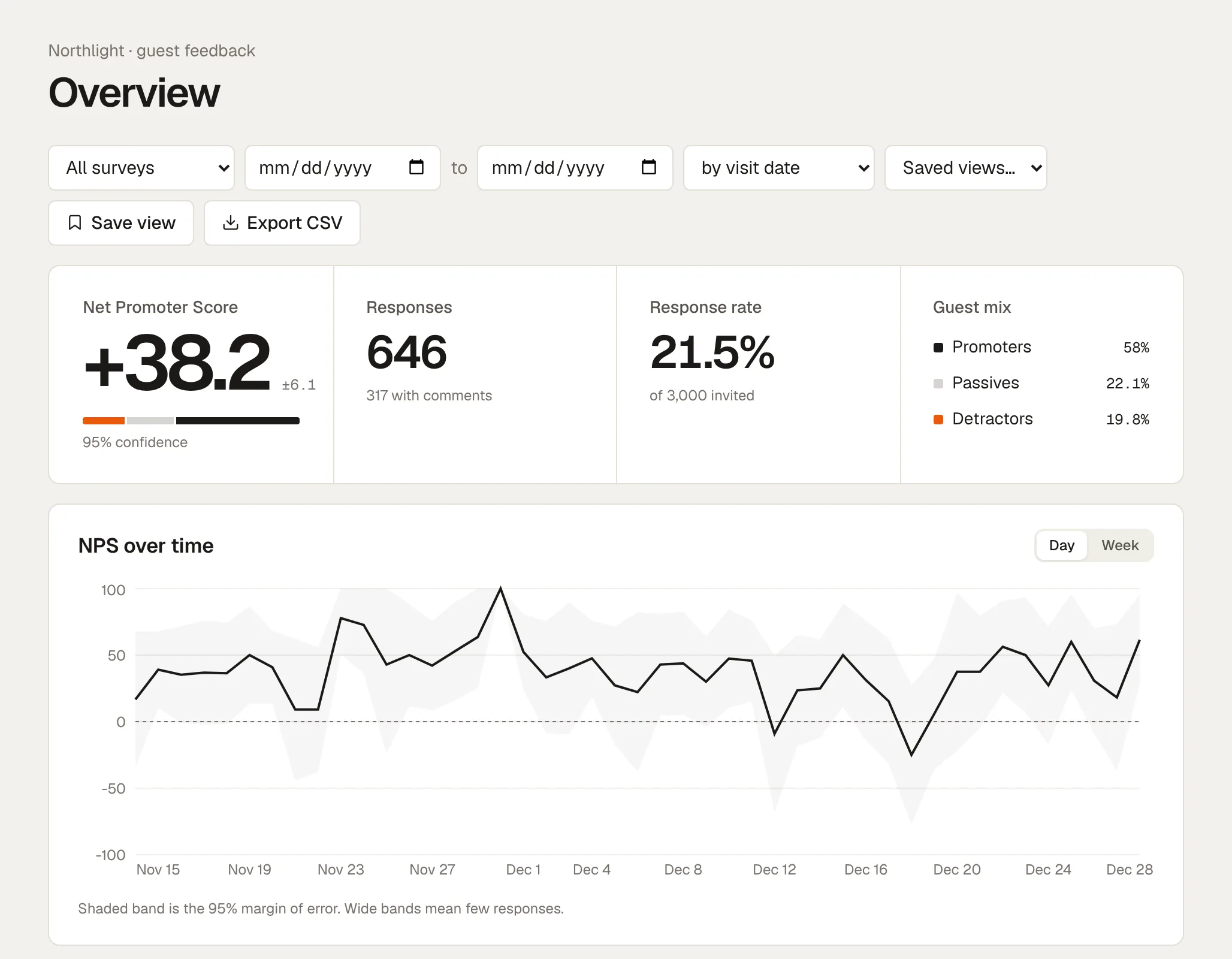
Overview is where your marketing team and leadership see how guests felt. Everything on it updates as answers come in.
What NPS means
Guests answer "How likely are you to recommend us?" on a 0 to 10 scale:
- Promoters (9-10) loved it and will tell their friends.
- Passives (7-8) were satisfied but not wowed.
- Detractors (0-6) were disappointed.
Net Promoter Score = % promoters − % detractors. It runs from −100 to +100. Above 0 means more fans than critics; above +50 is excellent for live events. Passives count toward the total but neither add nor subtract.
The top row
- Net Promoter Score, with a ± margin. Encore is 95% confident the true score sits within that range. With few responses the margin is wide (or not shown yet), so don't read much into a small swing until you have a few hundred answers.
- Responses: how many guests answered, and how many left a comment.
- Response rate: answers as a share of guests invited.
- Guest mix: the split of promoters, passives and detractors.
If any of your surveys use stars, faces or thumbs, a Guest satisfaction row also appears: the share of happy guests (4-5 stars, top faces or a thumbs up), the Average rating out of 5, and how many satisfaction answers you have. These never mix into NPS, which uses 0-10 answers only.
Filter what you see
The toolbar at the top filters the whole page:
- All surveys or one survey.
- A date range, by visit date (when guests came) or by response date (when they answered). Use visit date to judge a particular night; use response date to see what came in this week.
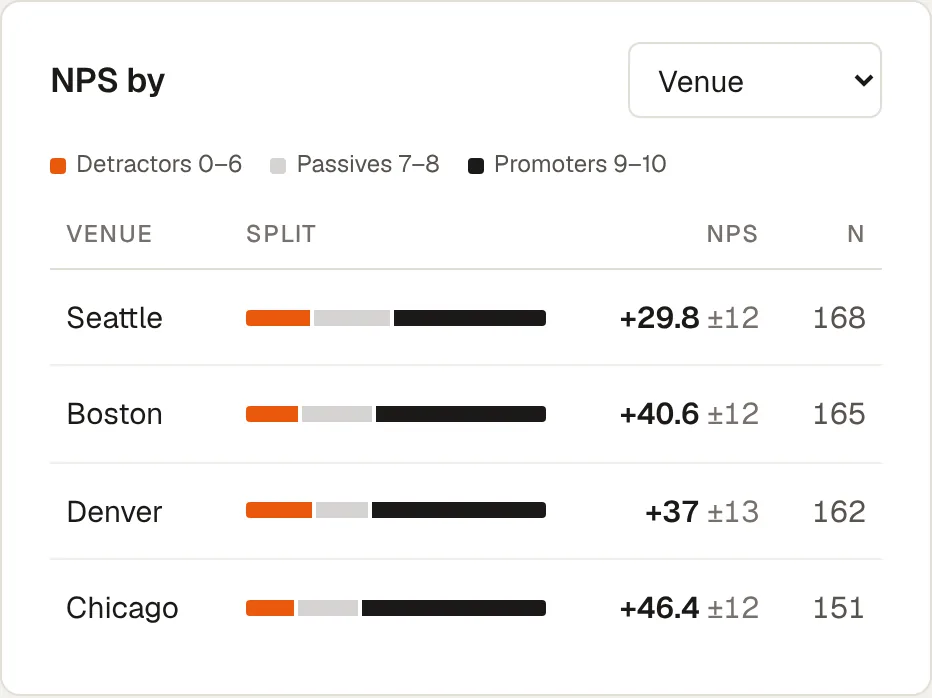
- Click any row in the NPS by table to filter to it. Filters show as chips above the numbers; click × to remove one, or Clear to remove them all. Stack them: for example Venue: Chicago plus Ticket type: VIP.
Slice by anything
The NPS by table breaks your score down by any detail Encore knows about each visit. Choose the dimension from the dropdown:
- Venue, Day of week, Channel (email, SMS, link), Survey
- Ticket type, Time slot, Promo code, Returning guests
- Any extra field your source sends, such as a column in your CSV or a property from Zapier or the API
Each row shows the split of promoters, passives and detractors, the NPS with its margin, and how many answers it's based on (n). Treat rows with small n carefully.
Encore records these details at the moment the survey is sent, so your reports don't shift later if an order is edited.
NPS over time
The trend chart shows your score day by day. The shaded band is the 95% margin of error: wide bands mean few responses that day.
Response funnel
For each channel, the funnel shows Invited → Sent → Delivered → Clicked → Scored → Commented, with percentages. Use it to spot where guests drop off: low Clicked suggests the subject line or message needs work; low Scored after clicking suggests a problem with the survey page. Failed and skipped counts appear underneath.
Parts of the visit and follow-ups
If you ask guests to rate parts of the visit (see Design your survey), Parts of the visit shows each one's average out of 5 and how many guests rated it 1-2. That's usually the fastest way to find what to fix.
Follow-ups shows how many happy guests clicked through to leave a review and how many staff alerts went out.
Comments
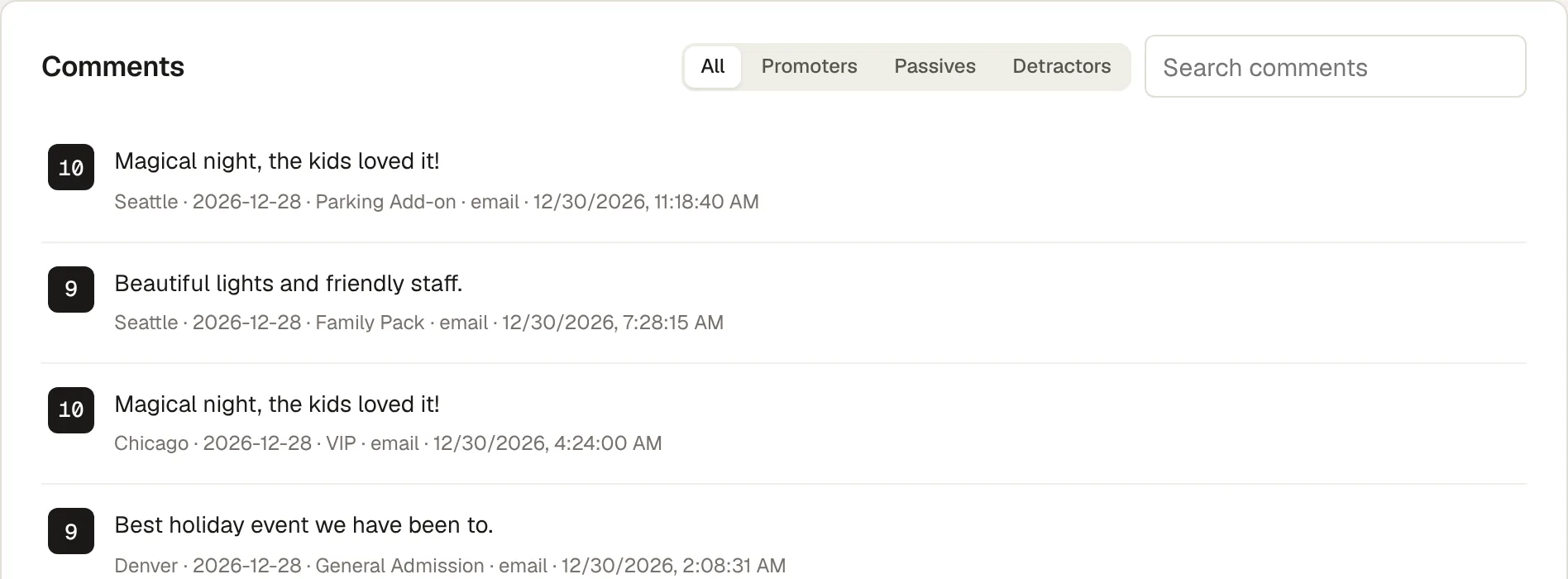
The Comments list shows what guests wrote, newest first, with their score, venue, visit date, ticket type and channel. Use Search comments to find a theme ("parking", "line", "hot chocolate"), and the filters above to narrow to one venue or night. Click Show more for older ones.
Save and share a view
Set up the filters you check often (say, last 7 days, by visit date, Venue: Denver), click Save view and give it a name. Pick it later from Saved views…. Saved views are shared with your team.
Export
Export CSV downloads every response that matches your current filters, with scores, comments and visit details, ready for a spreadsheet or a board deck.
Test answers (from Test send) never appear here.
Didn't find what you need? Email hello@eniaclabs.dev.