

Design your survey: templates, questions and the thank-you page
Choose a template, edit the question and wording, add follow-ups, and decide what happens after a guest answers.
Everything a guest sees lives on Surveys. The survey's name is the page heading; click it to switch between surveys, rename one, or create a new one. A preview stays pinned beside the settings while you edit (use the ⇄ button to move it left or right), and it follows the tab you're on.
Nothing reaches guests until you click Save. If you leave with unsaved changes, Encore asks first.
Choose a template
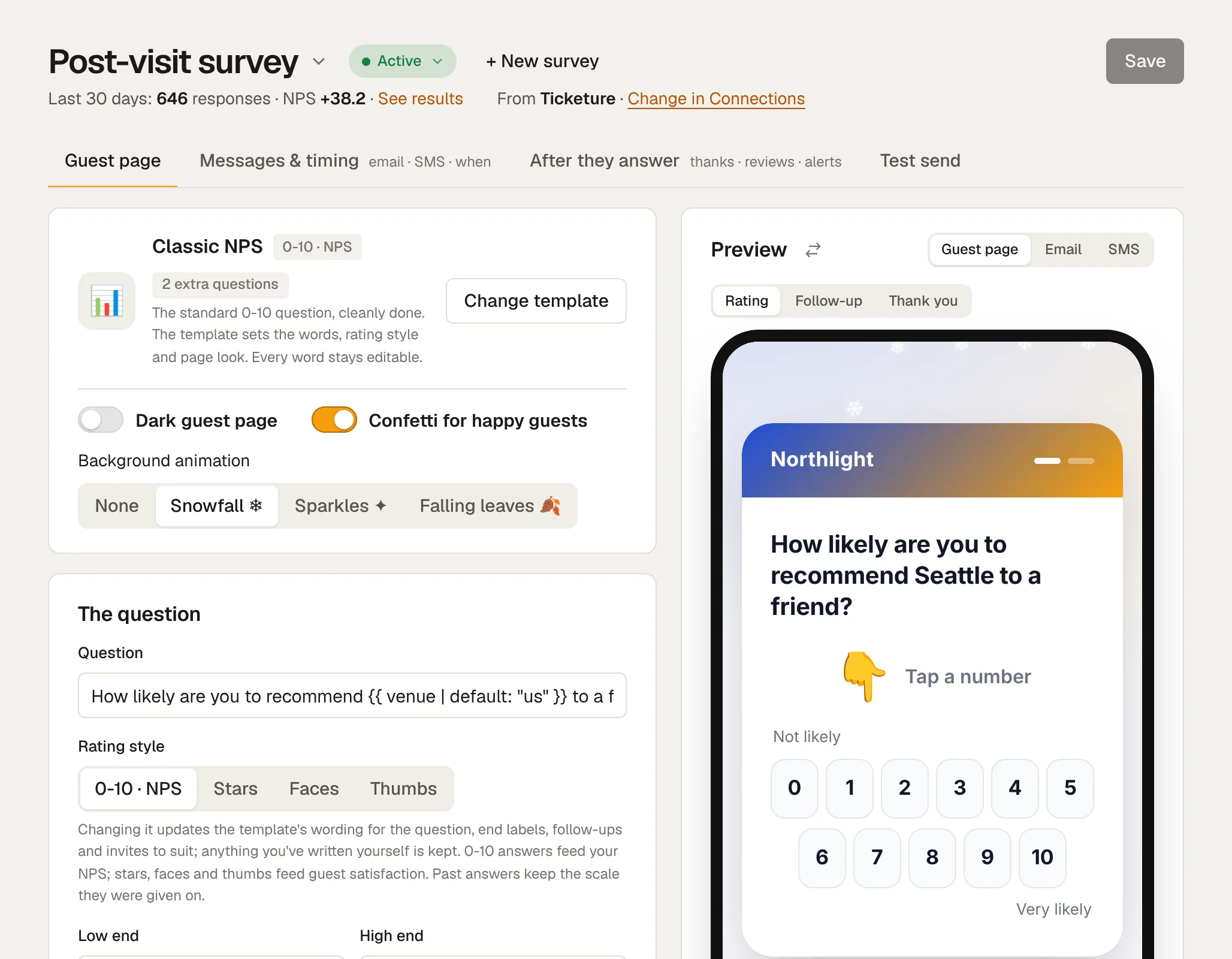
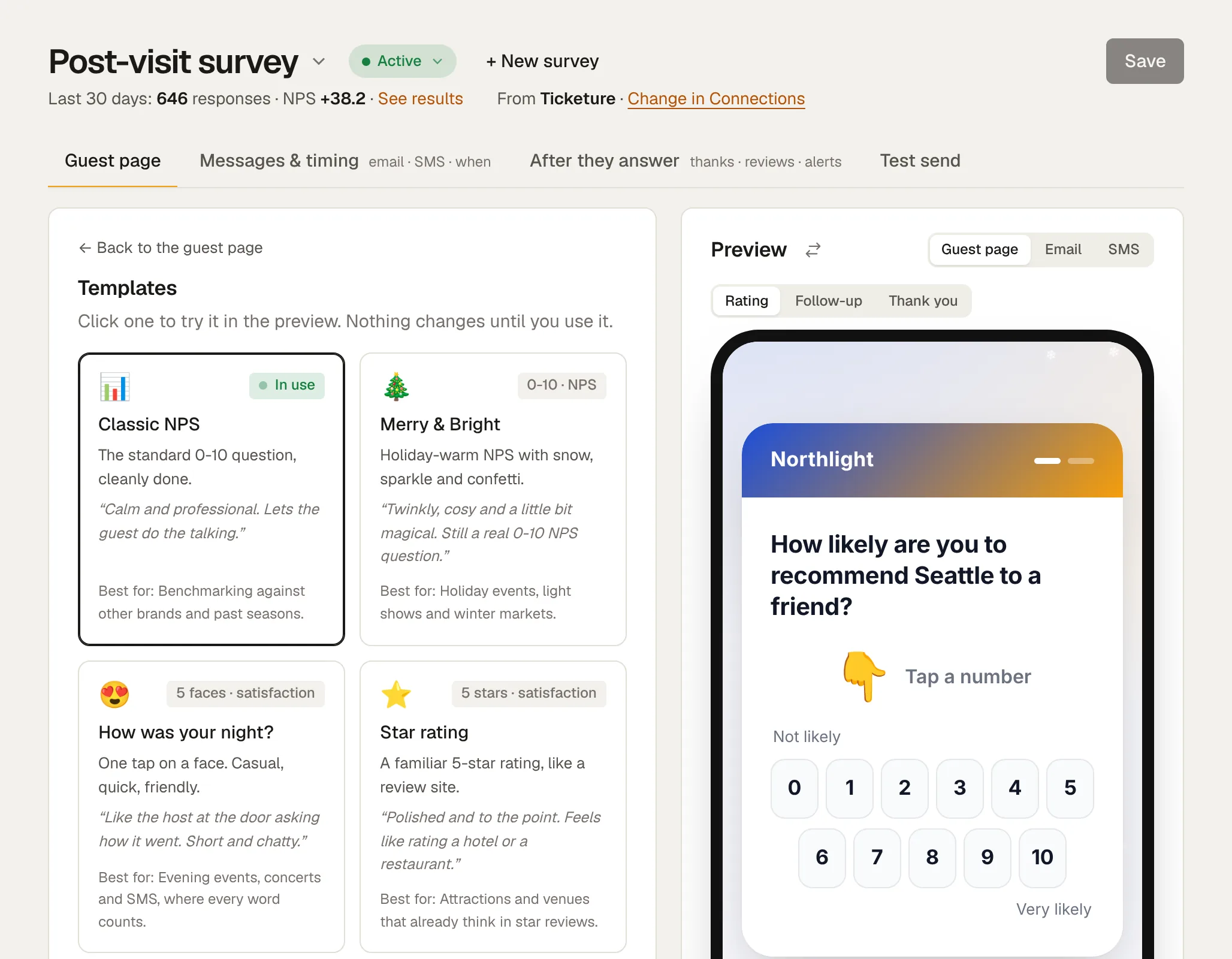
A template sets the question, the rating style, the wording, the look (light or dark page, confetti) and the follow-up questions in one go. On the Guest page tab, click Change template. Click any template to try it in the preview; nothing changes until you click Use this template. Changed your mind after using one? Undo template puts your previous words back until you edit or save.
| Template | Voice | Best for |
|---|---|---|
| Classic NPS | Calm and professional | Benchmarking against other brands and past seasons |
| Merry & Bright | Twinkly, cosy, a little magical (still a real 0-10 NPS question) | Holiday events, light shows, winter markets |
| How was your night? | Like the host at the door. Short and chatty | Evening events, concerts, and SMS where every word counts |
| Star rating | Polished, like rating a hotel | Attractions and venues that already think in star reviews |
| Post-visit deep dive | Curious and thorough, about a minute | Learning what to change next season. Better on email than SMS |
| Quick pulse | Snappy: yes or no, then an optional note | High-volume SMS, add-ons, quick checks |
| Start from scratch | Neutral words for you to rewrite | When none of the templates fits |
Your brand (name, logo, colours) comes from Branding and applies to every template.
Edit the question
Under The question:
- Question: the main question. For NPS, keep the classic wording ("How likely are you to recommend…") so your score is comparable with past seasons and other brands.
- Rating style: 0-10 · NPS, Stars, Faces or Thumbs. Only 0-10 answers feed your Net Promoter Score. Stars, faces and thumbs feed Guest satisfaction on the Overview instead. Answers already collected keep the scale they were given on, so switching doesn't corrupt your history. Switching also updates the template's own wording for the question, end labels, follow-ups and invites to suit the new scale. Anything you've written yourself is kept, and Encore tells you which so you can check it still fits. Undo rating change puts everything back, and the survey shows as Custom (from its template**)**.
- Low end and High end: the labels under the scale, such as "Not likely" and "Very likely".
Follow-up, by how they felt
Right after the rating, guests see a follow-up question above the comment box. You can write a different one for Happy (9-10, 5★), Okay (7-8, 4★) and Unhappy (0-6, 1-3★) guests. For example: "What made it magical?" for happy guests and "What should we fix first?" for unhappy ones.
Extra questions
Add up to three more questions: Pick one (multiple choice), Free text or 1-5 rating. Leave this empty for the shortest survey: guests rate, comment and they're done. Every extra question costs you some completions, so add only what you'll act on.
More wording
More wording holds the small line above the question, the comment box placeholder and the send button. You can personalise with variables such as {{ first_name }}.
Messages: the email and the text
On Messages & timing, write the invitation:
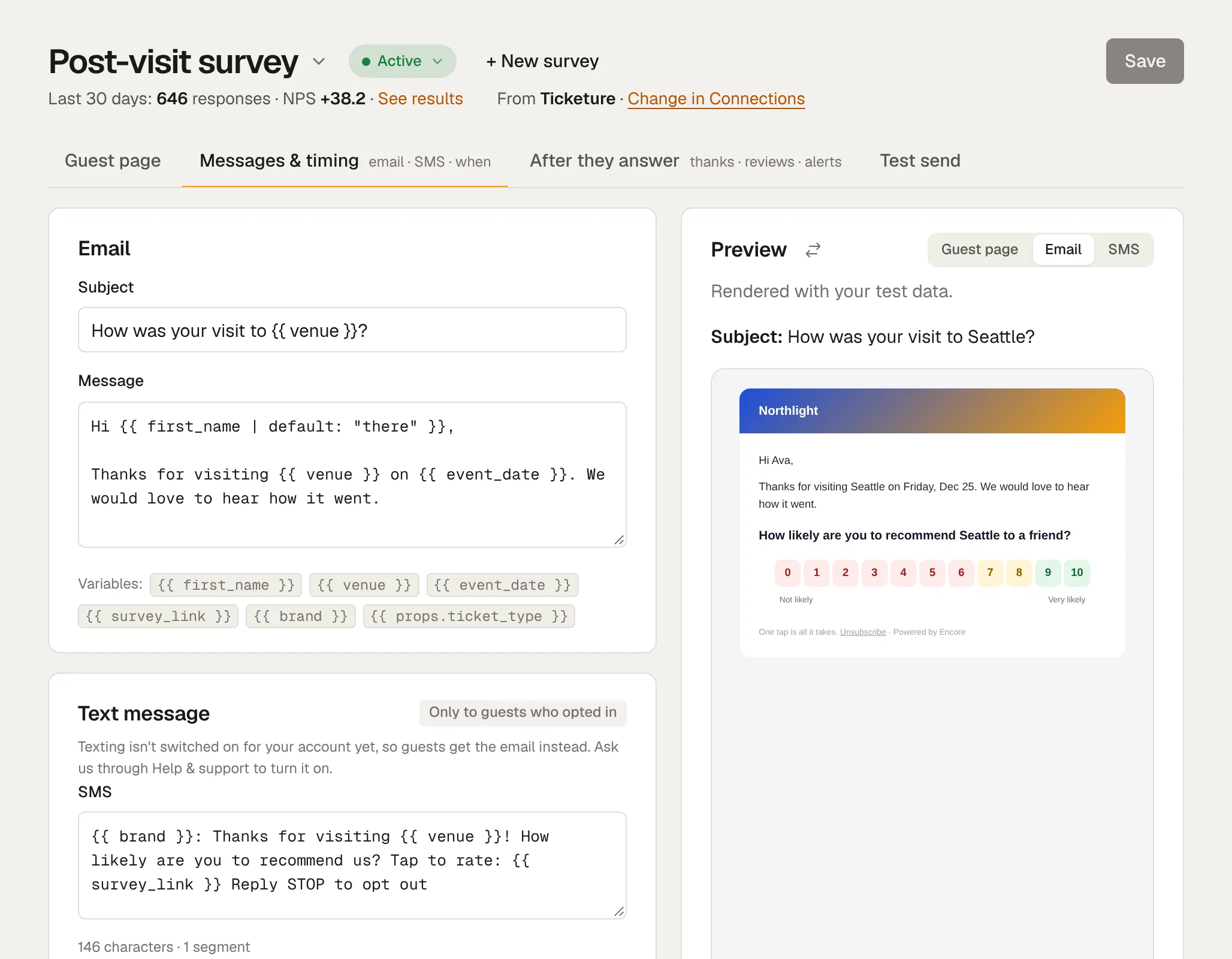
- Email: Subject and Message. The 0-10 buttons are added to the email automatically, so guests can answer with one tap.
- Text message: goes only to guests who opted in to SMS. The counter shows characters and segments; going over one segment costs extra, so keep it short. (SMS is coming soon, planned for late November.)
Variables you can use: {{ first_name }}, {{ venue }}, {{ event_date }}, {{ survey_link }}, {{ brand }}, and anything your source sends as {{ props.ticket_type }} (or any other property name).
Link tracking (UTM) sets utm_source, utm_medium and utm_campaign on the links in your messages, so visits show up properly in your web analytics.
After they answer
The After they answer tab controls what happens once a guest submits.
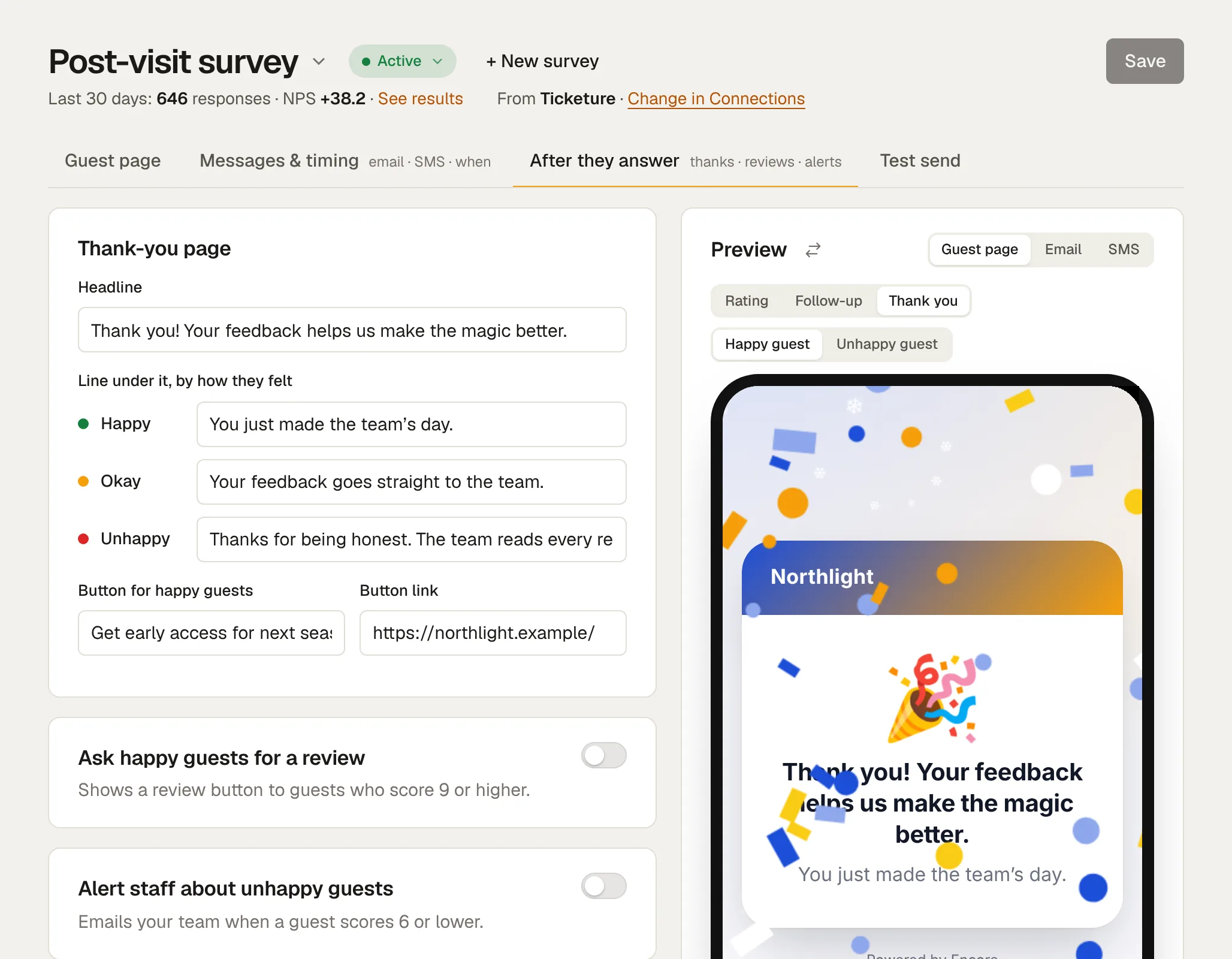
- Thank-you page: the headline, a line under it that changes by how they felt, and an optional button for happy guests (for example, "Book next year" with a link).
- Ask happy guests for a review: shows a review button to guests who score at or above your Minimum score (9 by default). Add your Google or TripAdvisor review page, and optionally Per-venue review pages, one per line, like
Chicago = https://g.page/r/…/review. - Alert staff about unhappy guests: emails your team when a guest scores at or below Highest score that alerts (6 by default). The email waits up to 10 minutes for the guest's comment and includes their contact details, so staff can reply straight to them. Use Also tell each venue's team to route alerts per venue.
- Rate parts of the visit: quick 1-5 faces after the score, one row per part of the visit (parking, entry line, food & drinks, staff, or your own). Use Only if the order has… to ask about parking only when the guest bought parking. Keep it to three or four.
The Dark guest page and Confetti for happy guests switches and the Background animation (None, Snowfall, Sparkles or Falling leaves) on the Guest page tab change the look of this survey only. Merry & Bright starts with Snowfall.
Test before you save
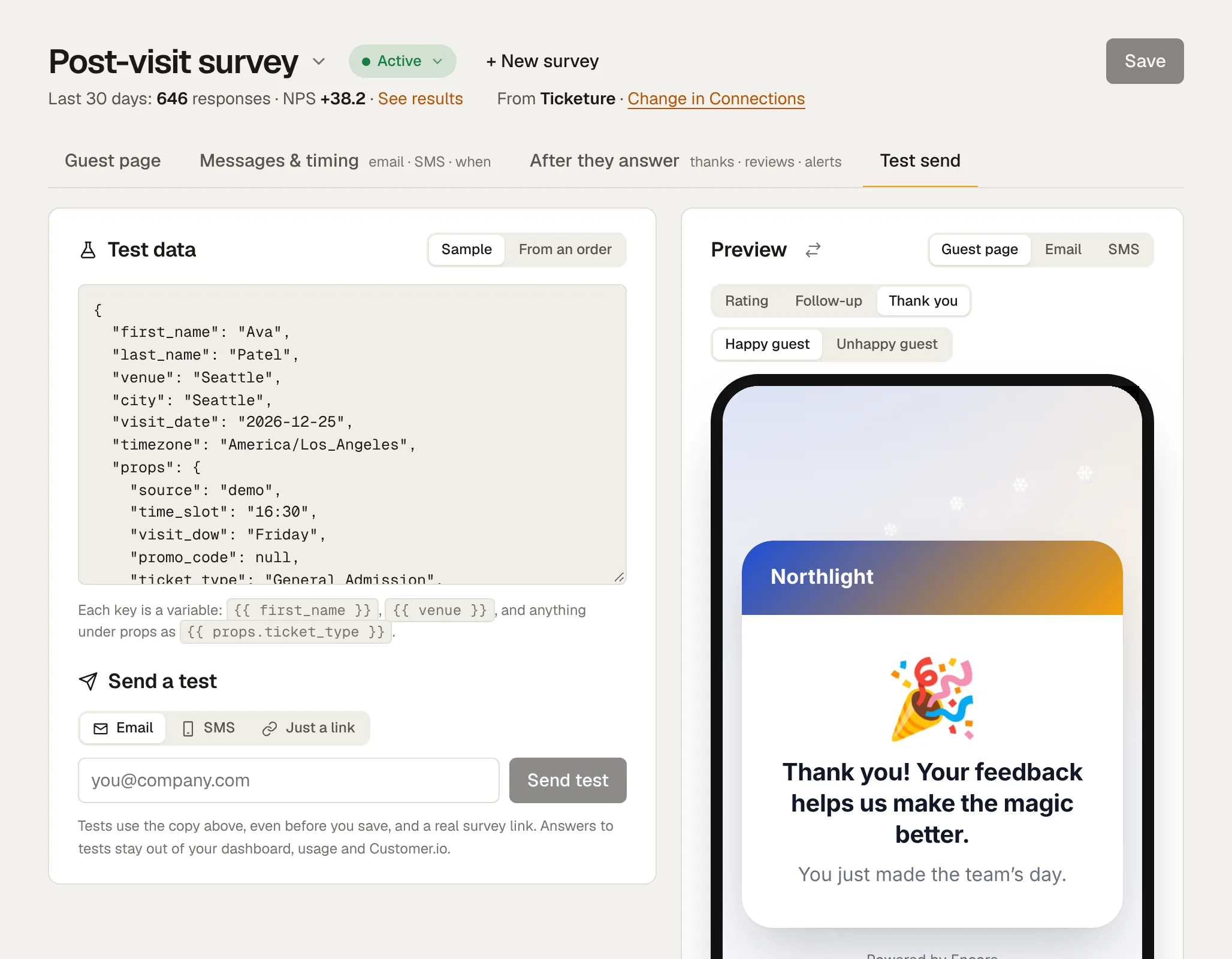
On Test send, the test data box holds sample values (name, venue, ticket type) as JSON. Edit them to see how the preview handles different guests. If Ticketure is connected, choose From an order and paste an order id to preview with a real order. Then send a test by Email, or click Just a link and Create test link to open it yourself. Tests use your current wording even before you save, and test answers never count toward your results.
More than one survey
Click + New survey, name it (for example "VIP guests"), pick a template to start from, and click Create and edit. Then go to Connections and set Sends on the source that should send it. A survey can be Active or Paused (the dropdown next to its name). A paused survey sends nothing.
Didn't find what you need? Email hello@eniaclabs.dev.