

Manage guests and their privacy
Find any guest, see their visits and answers, send a survey now, unsubscribe them, or delete their data.
Guests lists everyone you've surveyed, from every source, with their visits and answers. It's where guest services looks someone up, and where you handle privacy requests.
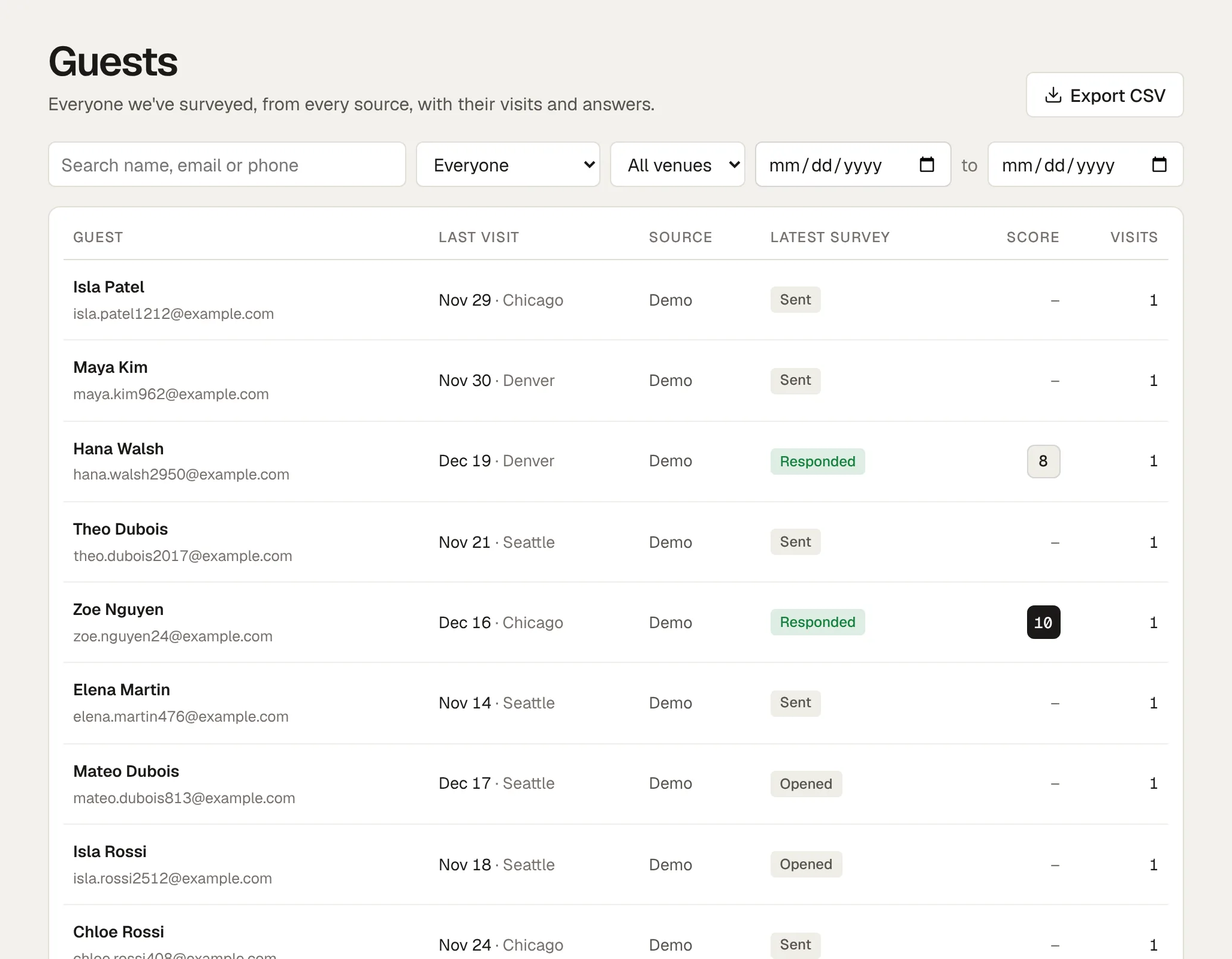
Find a guest
- Search by name, email or phone.
- Filter by status: Everyone, Responded, No response yet, Promoters, Passives, Detractors, Unsubscribed or SMS opt-in.
- Filter by source and venue (shown when you have more than one), and by visit dates.
- Click Clear to reset.
Export CSV downloads the guests that match your filters. A handy one: Detractors for last weekend, exported for your guest services team to call back.
A guest's record
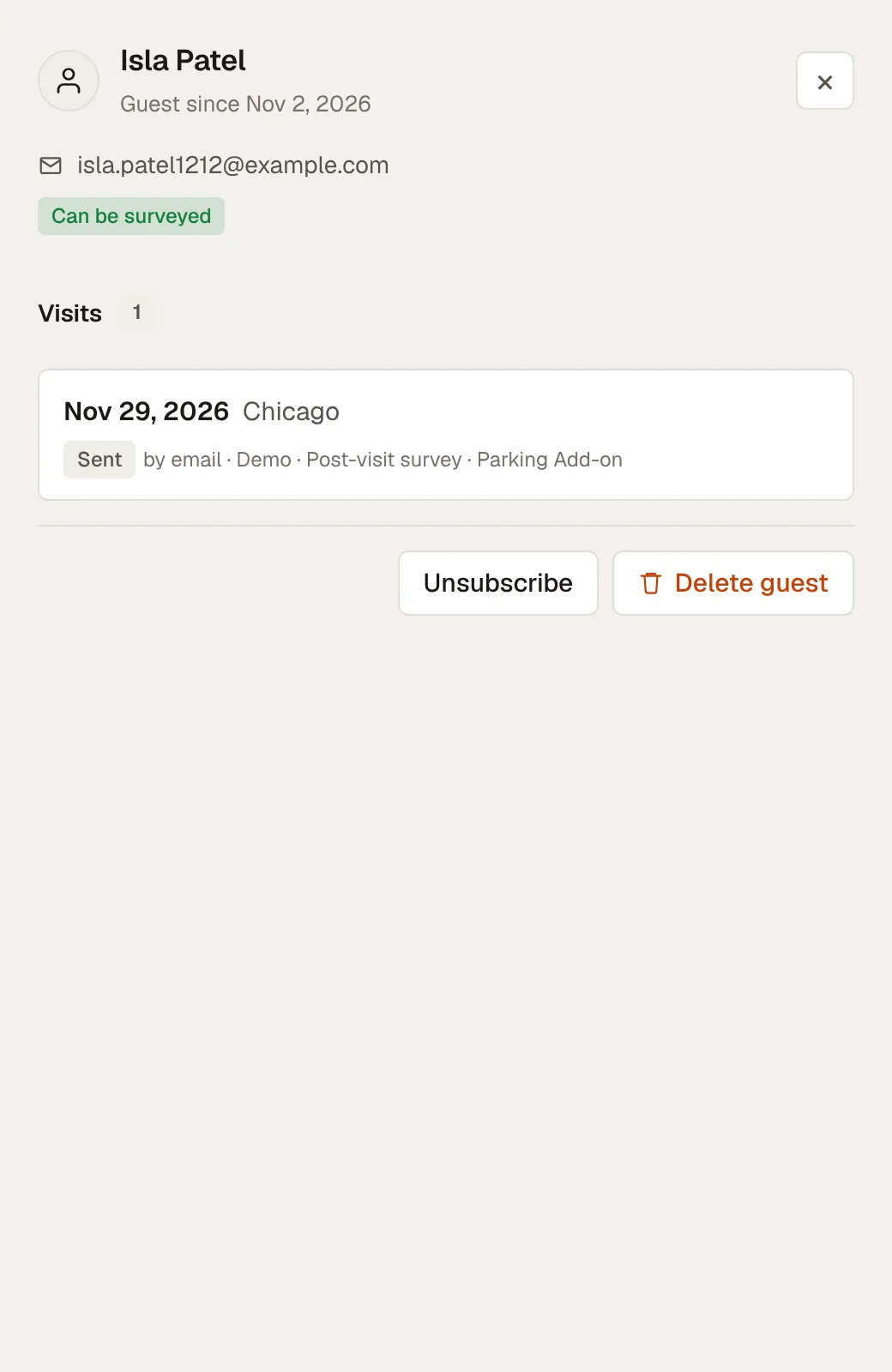
Click a guest to open their record. You'll see:
- Their email and phone, whether they Can be surveyed or are Unsubscribed, and whether they opted in to SMS.
- Every visit: the date, venue, score, comment and any other answers, plus where the survey got to: Scheduled, Sent, Opened, Responded, Not delivered, Link only, or Skipped with the reason.
- For each visit: which source it came from, which survey was sent, by email or text, and the ticket type.
How guests are matched
Encore keeps one record per guest so you see their whole history:
- The same email is always the same guest, whichever source they came from.
- A visit with only a phone number joins the guest with that phone.
- Two different emails sharing one phone stay separate guests, because families often share a number.
Send a survey now
If a visit is Scheduled, click Send now to send it within a minute instead of waiting for its send window. See When surveys send.
Unsubscribe a guest
If a guest asks not to be surveyed again, open their record and click Unsubscribe. It's the same as them clicking the unsubscribe link at the bottom of every survey email: they won't get any more surveys from your account. Their history stays.
Guests can unsubscribe themselves from any email. Guests who mark an email as spam are unsubscribed automatically. Texts (coming soon) will honour STOP replies.
Delete a guest (right to be forgotten)
When a guest asks you to delete their data:
- Open their record and click Delete guest.
- Read the confirmation and click Delete guest again.
What happens:
- Their name, email, phone, comments and order details are removed for good.
- Their scores stay in your reports with no name attached, so your NPS doesn't change.
- They won't be surveyed or added again, even if they buy another ticket or appear in a future CSV.
This can't be undone. If you also send results to Customer.io, delete the person there too: Encore doesn't remove them from Customer.io for you.
Data retention
At the bottom of Guests, Data retention sets how long Encore keeps guests' personal details after their last visit: Keep until deleted (the default), 6 months, 13 months, 2 years or 3 years. Click Save.
After that time, a guest's name, email, phone and comments are cleared automatically. Their scores stay in your reports with no name attached. If they come back later, they're simply surveyed as a new guest.
A common choice for seasonal events is 13 months: long enough to compare one season with the next, short enough to keep only what you need.
Good to know
- Only people on your Team can see guest details.
- Answers to test sends never count toward your results.
Didn't find what you need? Email hello@eniaclabs.dev.