

Connect Eventbrite, Shopify, Zapier, Make, Google Sheets, a CSV or the API
Every way to bring guests into Encore besides Ticketure, and when to use each.
Encore can take guests from several places at once. Each source is a tile on Connections under Where guests come from, and each connection has its own Sends setting, so you can send a different survey from each one (for example a VIP survey from your VIP list).
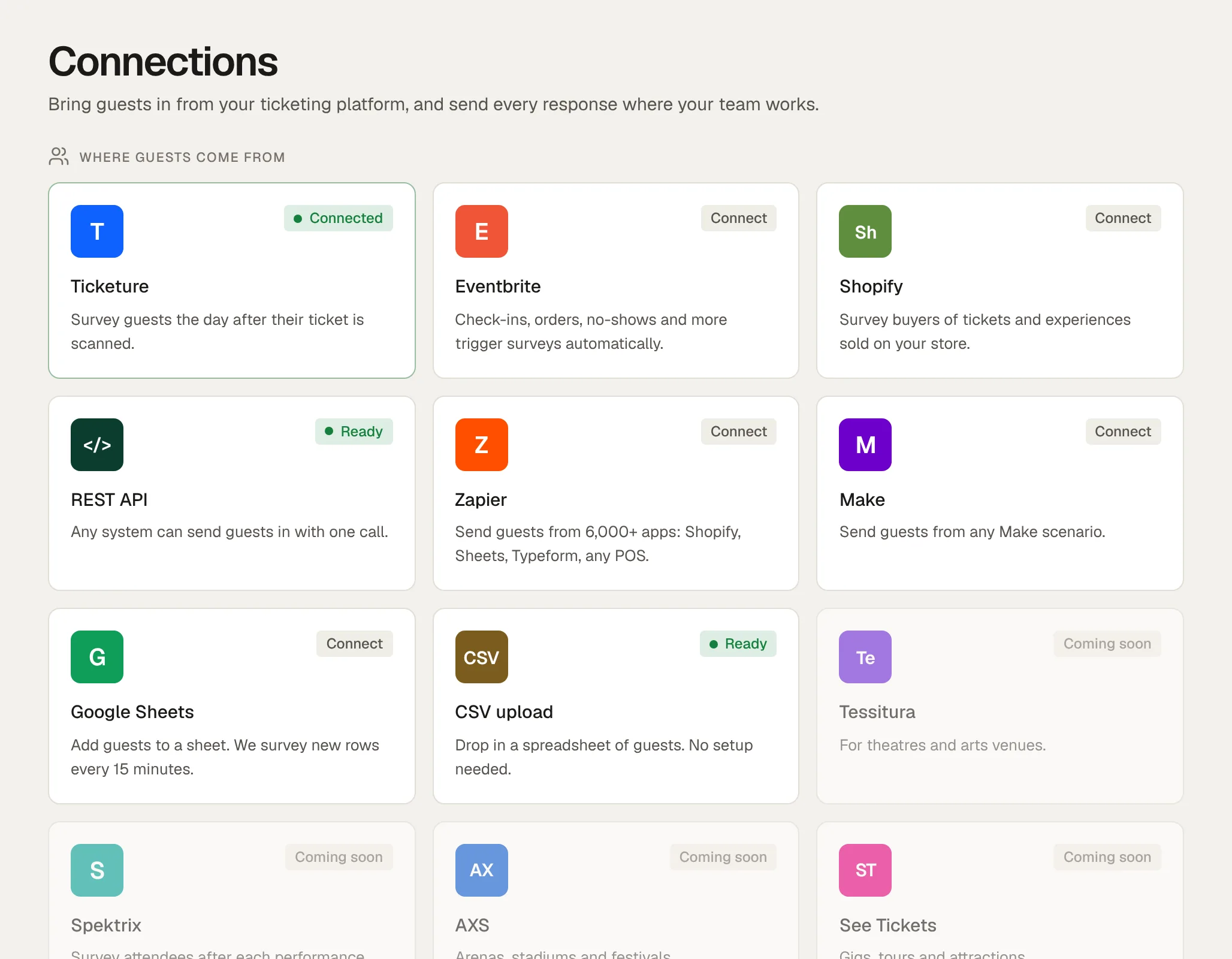
| Source | Best for | What triggers a survey |
|---|---|---|
| Eventbrite | Events sold on Eventbrite | You choose: check-in, order placed, no-show, before the event, check-out or refund |
| Shopify | Tickets or experiences sold on a Shopify store | An order is fulfilled, paid or placed (you choose) |
| Zapier | Any of 6,000+ apps | Your Zap sends a guest |
| Make | Any Make scenario | Your scenario sends a guest |
| Google Sheets | A list your team keeps by hand | A new row appears (checked every 15 minutes) |
| CSV upload | One-off lists and exports | You upload the file |
| REST API | Your own systems, POS or CRM | Your system makes one call |
Whatever the source, guests are surveyed on the survey's usual schedule, by default the day after their visit. Sending the same guest twice never double-sends.
Eventbrite
- Click the Eventbrite tile.
- Click Connect with Eventbrite, sign in and approve read access. Encore sets up the check-in webhook for you. Or paste a Private token (in Eventbrite: Account settings, Developer links, API keys).
- Optional: Only these event ids limits surveys to certain events. Default timezone is used when an event has none.
- Under Sends, pick the survey.
The card shows "Set up in Eventbrite ✓" when the webhook is in place. If it says "Not set up in Eventbrite yet", click Set it up for me. On the Eventbrite card, When this happens, send lists your rules, one per row: a trigger and the survey it sends. Click + Add a trigger for more. Triggers:
- Guest checks in: post-visit survey, sent after the survey's delay (the next day by default).
- Order placed: purchase survey. Cancelled if the order is refunded before it goes out.
- Guest didn't come: no-show survey, scheduled from the order for the day after the event and cancelled automatically if anyone on the order checks in or the order is refunded.
- Before the event: sent a set number of days before the event (2 by default). Cancelled if refunded.
- Guest checks out: for events that scan guests on the way out.
- Order refunded: ask what went wrong.
One Eventbrite connection and one webhook cover every rule. Each survey has its own "don't survey again within N days" rule, so one survey doesn't block another. If you sell in more than one place (say Eventbrite and Ticketure), pick the same survey on both: a guest who buys in both places still gets it only once. To survey past orders, use Backfill past orders with one Eventbrite order id per line.
Shopify
- In Shopify admin, go to Settings → Notifications → Webhooks and copy the signing key ("Your webhooks will be signed with…").
- In Encore, click the Shopify tile and paste it into Webhook signing key.
- Choose Survey when an order is: fulfilled suits tickets that are scanned or picked up; paid suits everything else.
- Optional: Only these products (matched against product titles), Venue name and Timezone.
- Click Connect Shopify. Encore shows a webhook URL. Back in Shopify, click Create webhook, choose the same event, format JSON, paste the URL and pick the latest API version.
- Use Send test in Shopify to check it. Test orders are acknowledged but never surveyed.
Zapier and Make
Use these to bring guests from almost any app: a form, a POS, a CRM, a booking tool.
- Click the Zapier or Make tile under Where guests come from. Encore gives you a private URL.
- In Zapier: pick your trigger, then add the action Webhooks by Zapier → POST with the URL, payload type json. In Make: after your trigger, add HTTP → Make a request, method POST, body type Raw, content type JSON (application/json).
- Send the guest's details. Only
emailorphoneis required:
{
  "email": "sam@example.com",
  "first_name": "Sam",
  "phone": "+16045550101",
  "sms_consent": true,
  "visit_date": "2026-12-12",
  "venue": "Denver",
  "order_id": "A-1042",
  "ticket_type": "VIP"
}
Any extra field, like ticket_type, becomes something you can filter the Overview by. You can send up to 500 guests per call as an array. Without a visit_date, the guest is treated as visiting today.
Google Sheets
- Make a sheet with one row per guest and an email or phone column (the same columns as a CSV upload work).
- Share it as Anyone with the link can view.
- Open the tab you want, copy the link from the address bar, and paste it into the Google Sheets tile.
Encore reads the sheet every 15 minutes and surveys new rows. The card shows when it was last read. Keep adding rows at the bottom; rows already read are never surveyed again.
CSV upload
No setup needed. Good for a one-off list, a past event, or a system with no integration.
- Click CSV upload. If you have more than one survey, pick which one to send.
- Choose your file (up to 10 MB and 10,000 rows; split bigger files). Download a sample shows the format.
- Encore checks the file first and shows how many guests are ready and which columns it recognised. Nothing is sent at this step.
- Click Import N guests. You'll see how many surveys were scheduled, how many guests were already imported, and any rows that were skipped and why.
Columns Encore understands: email, phone, first_name, last_name (or name), visit_date, venue, city, timezone, sms_consent, and a guest id. Every other column (ticket type, order id) becomes a filter on the Overview. Uploading the same file again is safe.
REST API
For developers connecting your own system.
- Open the REST API tile and click + New key. Copy the key straight away; it isn't shown again.
- Survey a guest:
curl -X POST https://encore.eniaclabs.dev/v1/invitations \
  -H "Authorization: Bearer $API_KEY" \
  -H "Idempotency-Key: order-123-2026-12-04" \
  -H "content-type: application/json" \
  -d '{"survey_id":"…","contact":{"email":"guest@example.com","first_name":"Ana"},
       "visit_date":"2026-12-04","venue":{"name":"Chicago","timezone":"America/Chicago"},
       "properties":{"ticket_type":"VIP"}}'
Retrying with the same Idempotency-Key never double-sends. Use "channel": "link" to get a survey link back without sending anything.
- Or just send an order id. If you have a ticketing connection,
POST /v1/orderswith{"order_id": "…"}is enough: Encore reads the order and fills in the guest, venue and tickets itself. If you have two connections of the same kind, addconnection_id.
The drawer shows copy-paste examples with your survey ids filled in.
Coming soon
Tessitura, Spektrix, AXS, See Tickets, Universe and Fever are on the roadmap. If you need one of these (or anything else), use Help & support to ask. Each integration is a small adapter.
Didn't find what you need? Email hello@eniaclabs.dev.